
Install guide
Put ClubAffili on your Home Screen
ClubAffili is a web app: nothing to download from a store. Save it to your Home Screen once and it opens full screen, like any other app. Six taps on iPhone.
iPhone and iPad (Safari)
Screens from an iPhone running iOS 26. Older versions put Share in the middle of the bottom bar; the steps after that are the same.
- 1
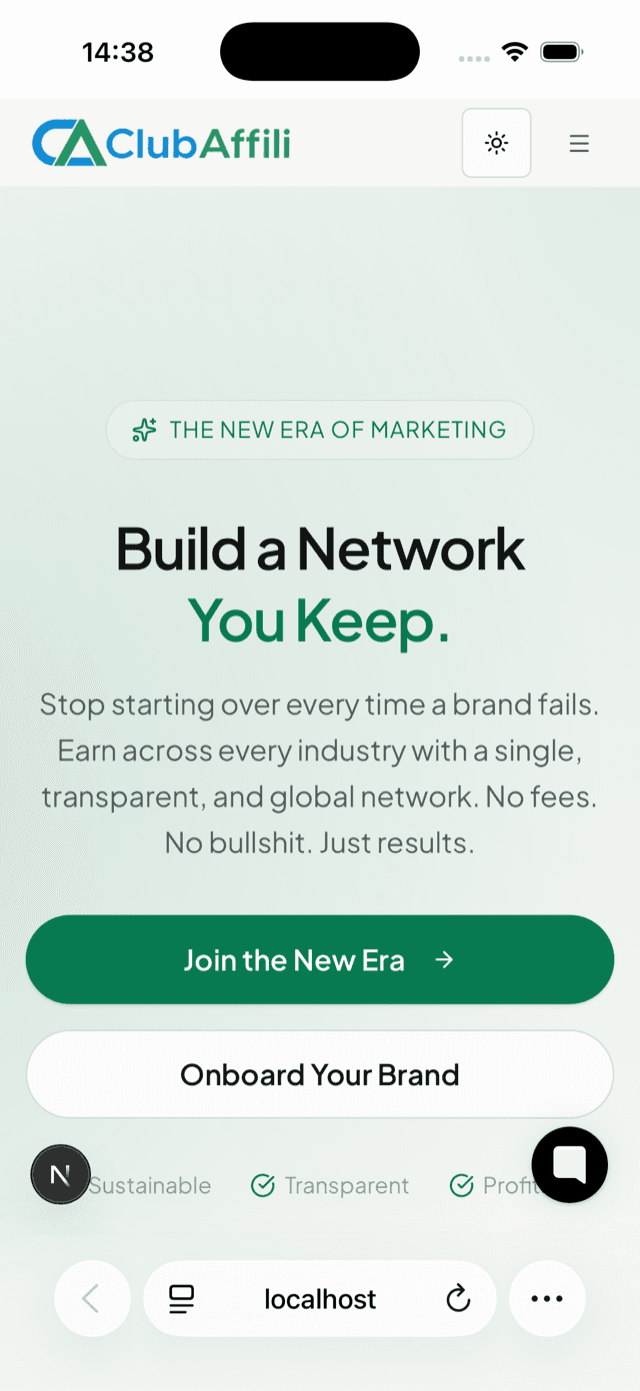
Open ClubAffili in Safari
Any page works. Look for the three dots at the bottom right of the address bar.
- 2
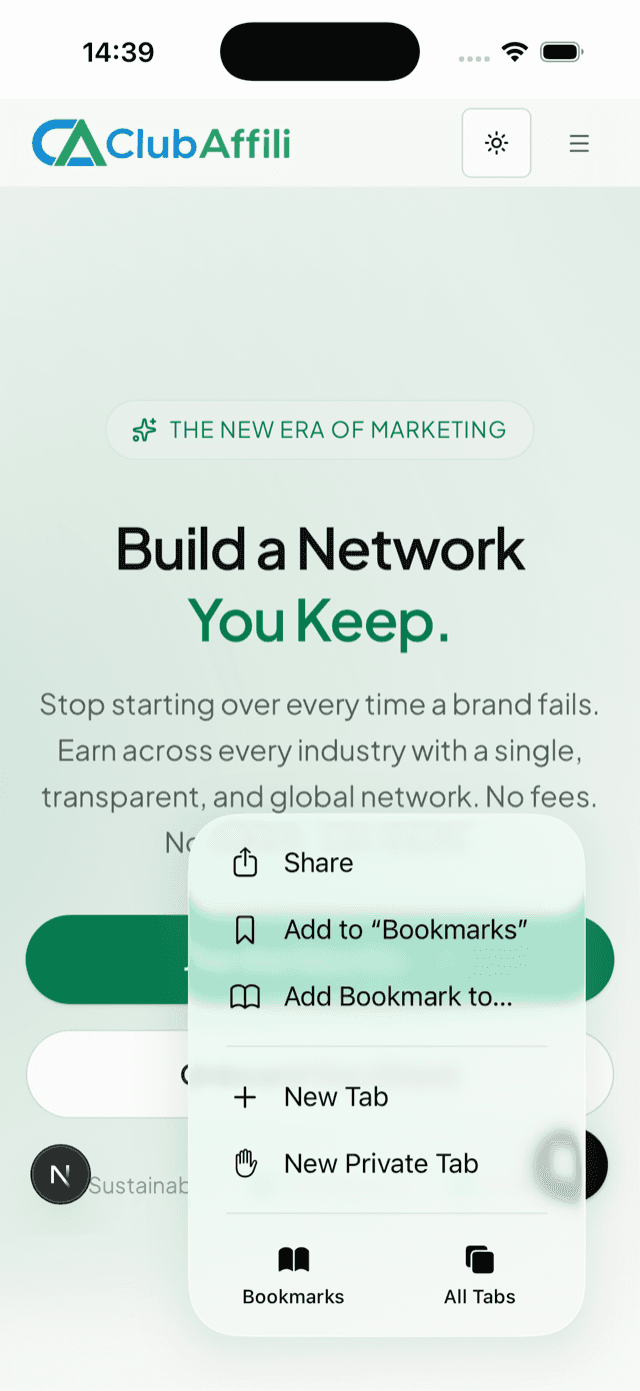
Tap the three dots, then Share
The page menu opens. Share is the first entry.
- 3
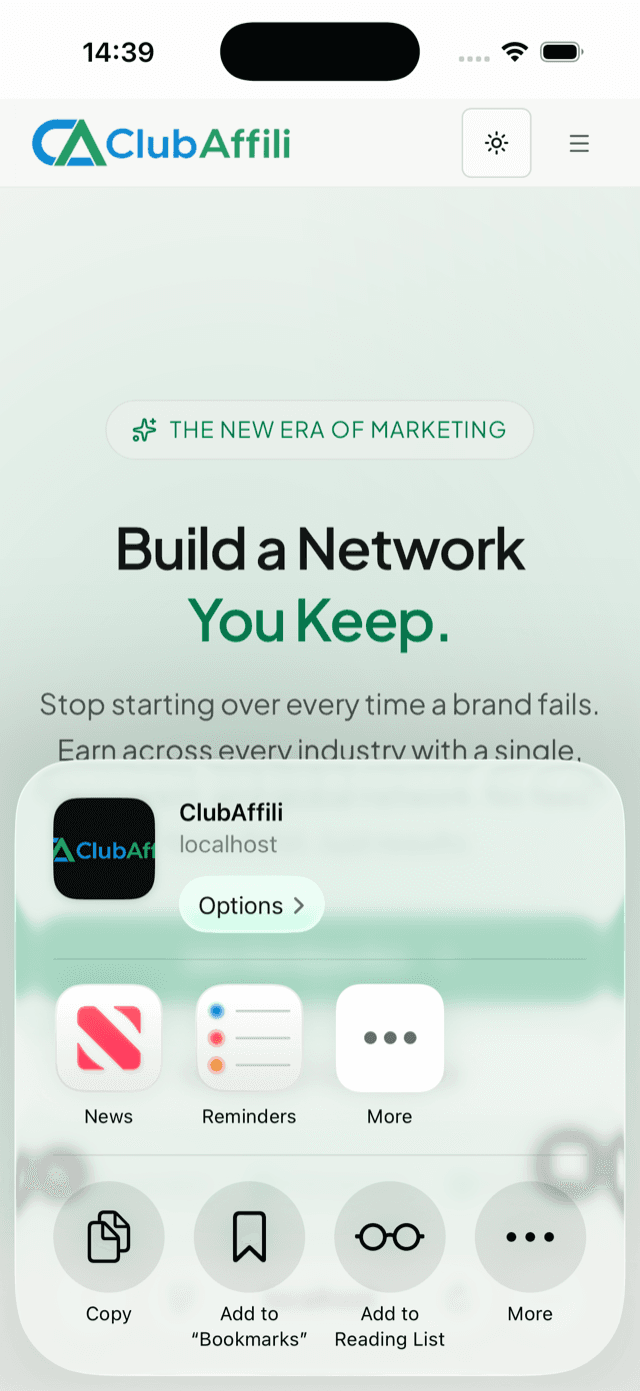
Tap More
The share sheet shows the ClubAffili icon. The install action sits behind More.
- 4
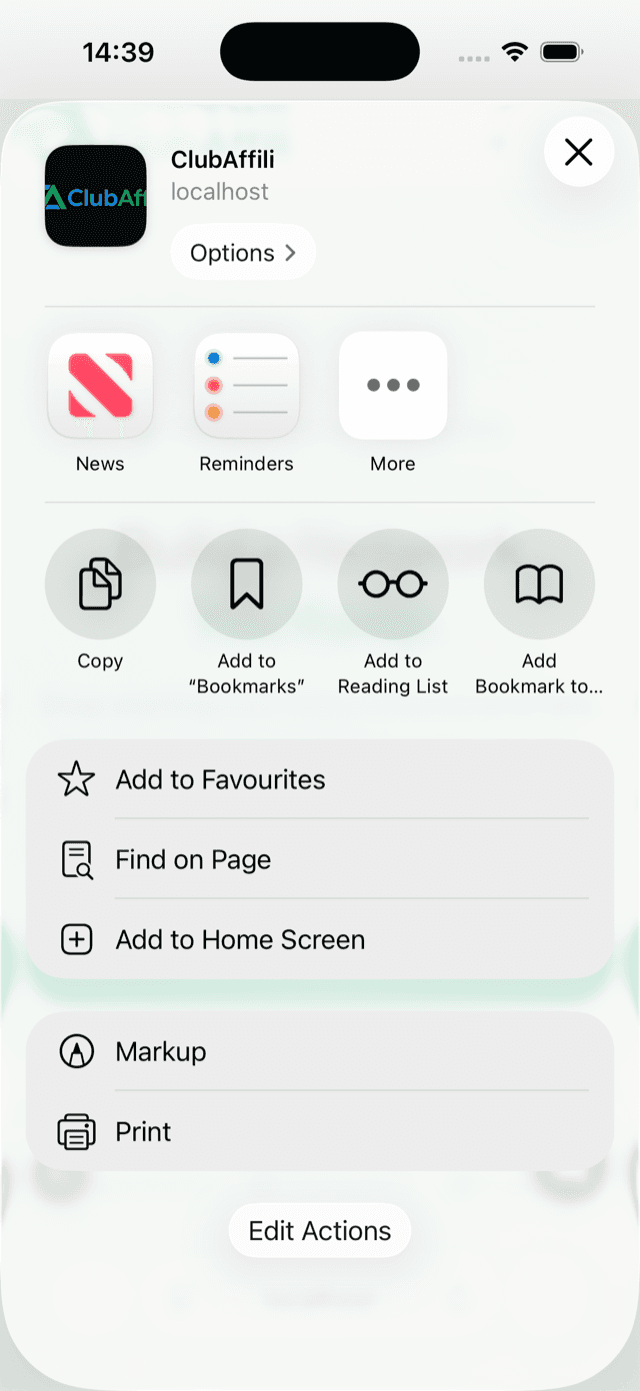
Tap Add to Home Screen
It is in the list, next to Add to Favourites.
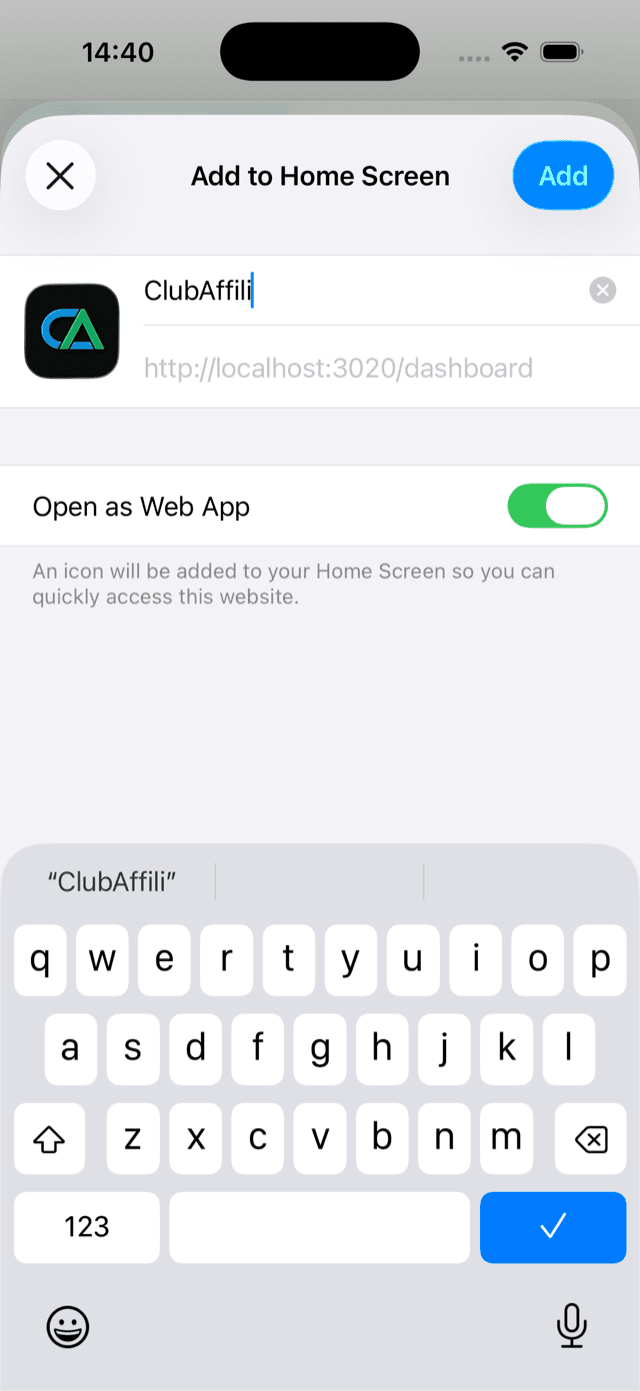
- 5
Keep "Open as Web App" on and tap Add
The name is already ClubAffili. Add is at the top right.
- 6
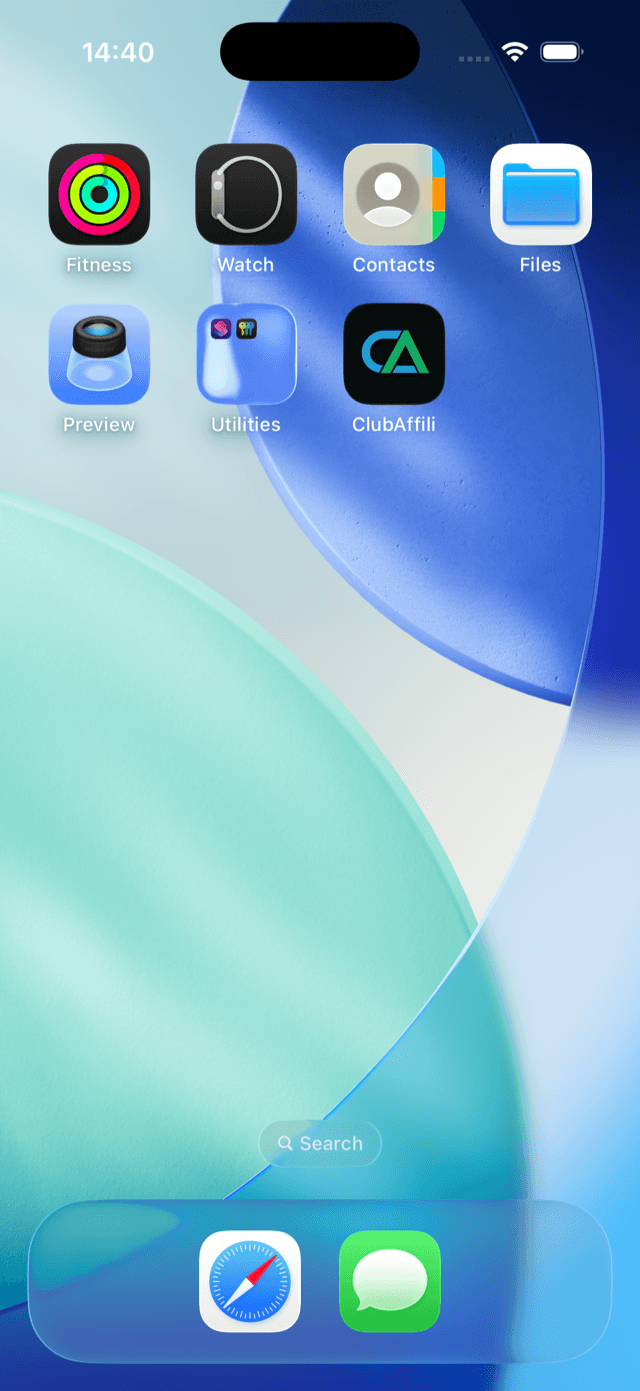
Done — it is on your Home Screen
Open it from there from now on. It runs full screen, without the browser bars.
What you get
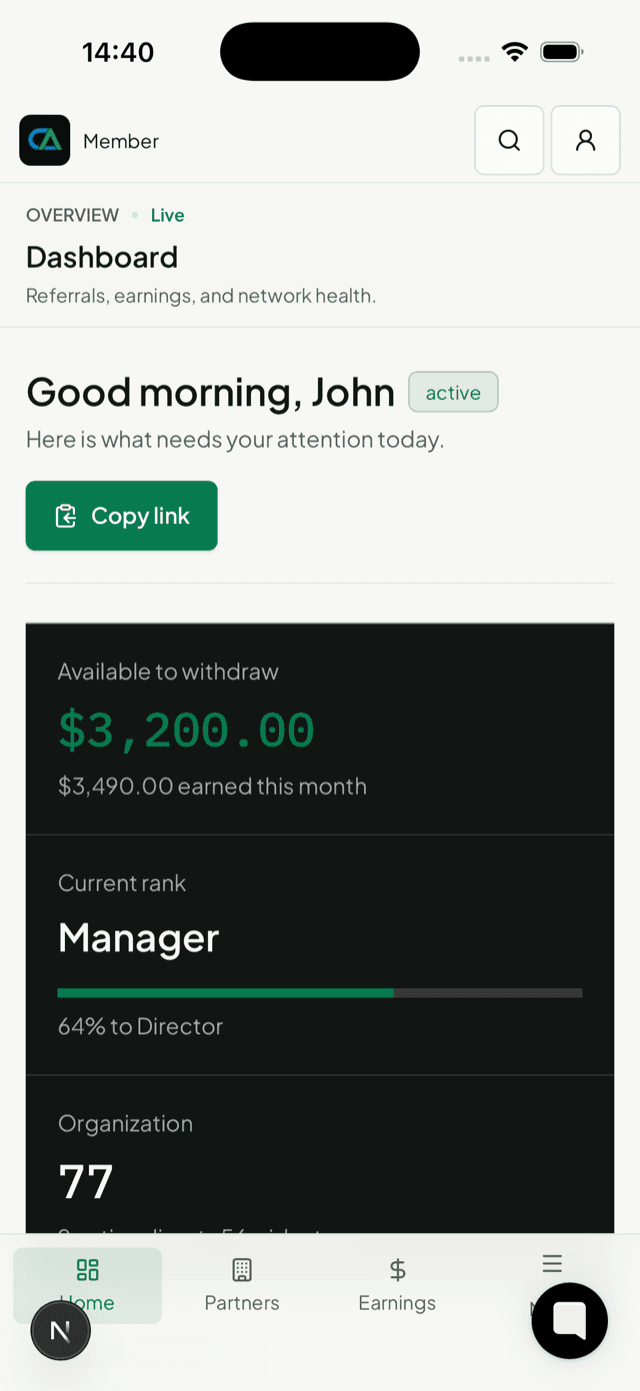
The dashboard opens full screen from its own icon: no address bar, your earnings and rank at the top, Home, Partners, Earnings and More along the bottom. Everything is one tap from your Home Screen, and you stay signed in.
Android (Chrome)
Chrome offers to install on its own; if it does not, three taps do it.
- 1Open ClubAffili in Chrome and tap the three-dot menu at the top right.
- 2Tap Add to Home screen (on some phones it reads Install app).
- 3Tap Install. The icon appears on your Home Screen and in your app list.
Inside the dashboard, the same hint appears on your phone with an Install button where the browser supports it.